
Samsung Notes
Samsung Electronics Co., Ltd.Productivity
4.8104.27K Reviews
- Version
- Varies With Device
- Installs
- 1.00B
- Age Rating
- Everyone
Screenshots

Our Review of Samsung Notes
 Analysis by Appyee
My most useful habit with a notes app is to decide what belongs in it before I start typing. Samsung Notes works best when I treat it as a flexible notebook for material I expect to revisit: meeting details, class notes, rough plans, lists, and ideas that begin as handwriting but may need to become tidy text later. It is a free productivity app from Samsung Electronics Co., Ltd., and that mix of quick capture and later organization is what makes it worth considering.
Start with a simple capture routine
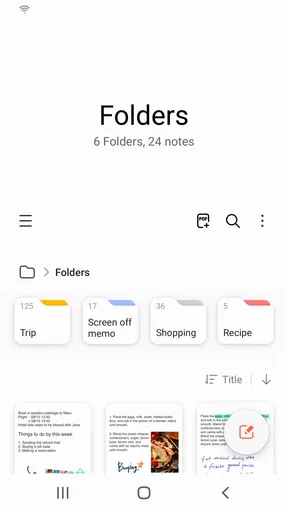
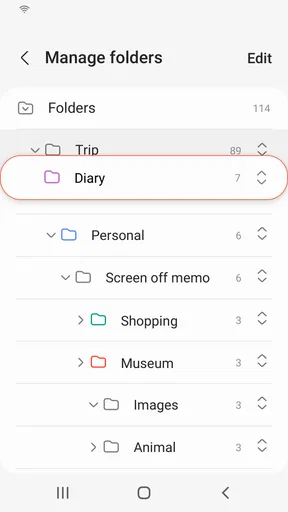
I would begin with a small set of folders rather than trying to design a perfect filing system. For example, keep separate places for personal errands, work or study, and reference notes. The goal is not to classify every thought before saving it; it is to make likely destinations obvious enough that filing takes a moment. If a note could fit in two places, choose one and use a clear title so search can help later.
A useful everyday pattern is to keep a running note for a recurring topic, then add dated entries or clear headings inside it when the subject changes. That can work well for a project, a course, or household planning, where scattering every small update into a new note makes the collection harder to scan. For one-off items such as a shopping list or a phone number you need briefly, a separate note is simpler. I would review and rename notes as I go instead of relying on a long trail of vague titles like “New note.”
Make handwriting and typing work together
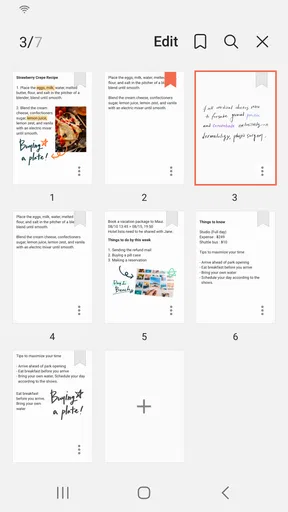
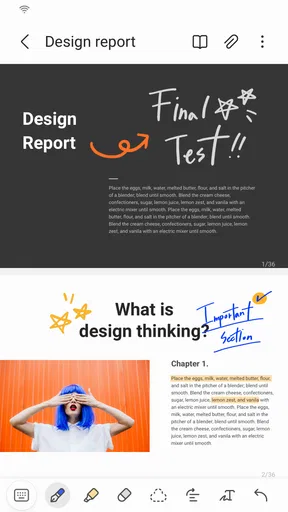
The choice between handwriting and typing does not have to be permanent. I find handwritten input especially useful when I am following a discussion, working through an idea, or sketching a rough relationship between points. Typing is usually better for a note that needs to be clean, easy to revise, or shared with someone who will read it quickly. A practical workflow is to capture freely during the moment, then return to the note afterward to add a readable title and arrange the important details.
Handwriting recognition can make written notes easier to work with, but I would still check the result before relying on it. Names, unusual terms, and hurried writing are the kinds of details that deserve a quick proofread. The time-saving move is not to transcribe every page; it is to make the key phrase or decision easy to find later. If you use a stylus, a consistent color for headings or action items can help you scan a page without turning every note into a decorated document.
Check the practical settings early
Before storing anything important, I would look at the available sync, backup, and security choices on the device and decide which ones fit my routine. Sync is useful if you regularly move between devices, but it is worth checking that you are using the account and setup you intend. A note visible on one device is not automatically a dependable backup plan, so I would confirm that important material is being preserved in the way I expect.
For private notes, check how the app’s biometric protection is set up and whether it suits the way you use your device. A lock can be reassuring for personal information, but extra protection may add friction if you need to open the same note repeatedly during a busy day. I would reserve stronger protection for notes that genuinely need it rather than making every everyday list harder to reach. For anything irreplaceable, keep a separate copy in a form you can access if your usual device is unavailable.
Share with a clear purpose
Sharing is most useful when I decide what the other person needs to do with the note. A quick list or a set of discussion points can be sent as-is; a working document needs clearer headings and enough context that it makes sense outside my own notebook. Before sending, I would read the note from the recipient’s point of view and remove private reminders or unfinished thoughts that were only meant for me.
This is also where Samsung Notes differs from a dedicated team workspace. It can help pass a note to another person, but a shared note is not a substitute for a structured project system when several people need assigned tasks, status tracking, and an ongoing discussion. For a small collaboration, a clean note may be all you need. For a team that must coordinate work over time, a purpose-built shared document or task tool is likely a better fit.
Use search as a safety net, not a filing plan
Search is valuable when I remember a phrase but not where I put it. It works best alongside descriptive titles and a few consistent terms. If I use the same name for a project across related notes, finding the right material becomes less dependent on memory. I would avoid titles that are too clever or personal shorthand that will make no sense a month later.
There is a small but important trade-off here: fast capture encourages messy notes, while elaborate organization can slow down the moment when an idea needs recording. I prefer a two-pass approach. Save the thought first, then spend a few seconds adding a useful title or moving it into the right folder when there is a natural pause. That keeps the app quick without turning the notes list into an archive of unidentifiable fragments.
Hey there, note-taking enthusiasts! If you're on the hunt for a versatile and user-friendly app to jot down everything from grocery lists to those spontaneous midnight ideas, let me introduce you to Samsung Notes. This app isn't just for Samsung users, so stick around while I dive into what makes it stand out in the crowded world of note-taking apps.
First Impressions
First things first, downloading Samsung Notes is a breeze. It's available on both Android and iOS, and the setup process is straightforward. Once installed, the app greets you with a clean and intuitive interface. No clutter, just pure simplicity, which is exactly what you need when your brain is buzzing with ideas.
Features That Make You Go Wow
Let’s talk about the goodies. One of the standout features of Samsung Notes is the variety of input options. Whether you're a fan of typing, scribbling with a stylus, or even sketching, this app has got you covered. The handwriting recognition is surprisingly accurate and makes digital note-taking feel almost like the real deal.
Another feature I love is the organization capabilities. You can create folders to manage your notes, making it super easy to find what you need when you need it. Plus, the search function is spot-on, pulling up relevant notes with just a few keywords.
Syncing and Sharing
In today's digital age, syncing is a big deal. With Samsung Notes, your notes can be synced across multiple devices—perfect for when you're switching from your phone to your tablet. And if you’re someone who likes to share your genius ideas, the app allows seamless sharing of notes via email, social media, or cloud services.
Customization Galore
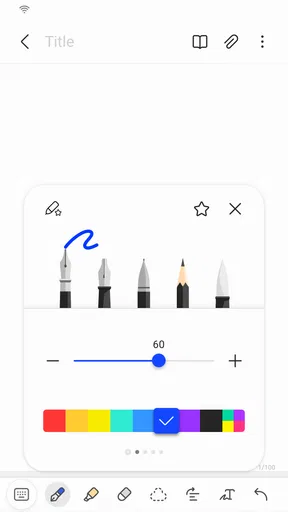
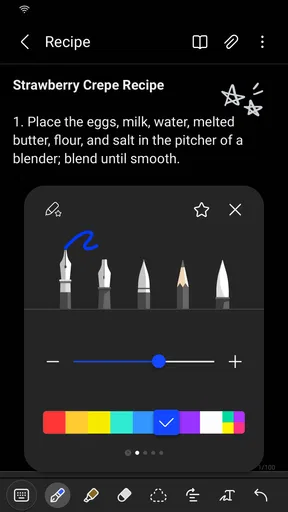
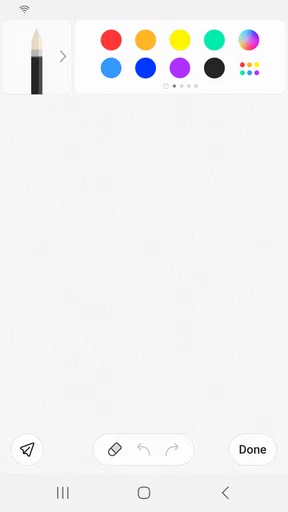
If customization is your thing, you're in for a treat. The app offers a variety of templates and themes to suit your style. Whether you prefer a minimalist look or something more colorful, there’s an option for everyone. You can also change the pen style and color, which is a nifty feature for those who like to add a bit of flair to their notes.
Security and Backup
Your notes are important, and Samsung Notes understands that. The app offers biometric authentication, ensuring that your notes stay safe from prying eyes. And with automatic backup options, you can rest easy knowing your notes are secure, even if your device decides to throw a tantrum.
Performance and Usability
Performance-wise, Samsung Notes is smooth. It runs without hiccups, even when juggling multiple notes or large files. The app’s design is intuitive, making it accessible for both tech-savvy users and those who just want something simple and effective. The learning curve is practically non-existent, so you can dive right in and start creating.
Where it fits in a note-taking toolkit
I would choose this for a personal notebook that needs to handle both quick typed entries and freeform pen work. Compared with a basic notes app built around short text snippets, the handwriting and sketching options give Samsung Notes more room for class diagrams, margin thoughts, and rough planning. Compared with a full document editor, it feels less formal: I can capture an idea without deciding on layout or polishing every sentence.
That middle ground is useful, but it also marks the boundary. If I need a carefully formatted report, a collaborative knowledge base, or a task board with clear ownership, I would use a tool designed around that job and keep only the supporting notes here. The app is strongest when the note itself is the main thing, not when I need a whole workflow wrapped around it.
A realistic day with the app
Imagine I am heading into a meeting with a few questions in mind. I can jot them down beforehand, use handwriting for quick points while people are talking, and type a short summary afterward while the decisions are still fresh. I would title the note with the project or subject, put it in the relevant folder, and mark the next steps clearly. Later, a search for the project name can bring the discussion back without making me remember the exact day I wrote it.
The same routine adapts to study. I might sketch a relationship between concepts during a lesson, then add typed definitions beneath it after class. For a household plan, I would keep a simple list and share it only when someone else needs to act on it. These examples sound ordinary, but that is the point: an app earns its place when it reduces the effort of capturing and retrieving small pieces of real life.
Choose the setup that matches your devices
Samsung Notes is made by Samsung Electronics Co., Ltd., and I would be especially comfortable recommending it to someone already using Samsung devices, where the note-taking routine can sit naturally alongside their other daily work. The app is free, rated for Everyone, and has been around since Aug 15, 2016. Its 4.8 average from around 14 million ratings and more than 1 billion installs suggest it has reached a very broad audience, though popularity alone cannot tell you whether its workflow suits you.
If you use a mix of devices or are considering switching platforms, test the exact routine that matters to you before building a large archive. Check whether your notes appear where you need them, and try opening and sharing a sample note. That practical check is more useful than assuming every feature will behave identically across devices. A notebook is only dependable if it fits the places where you actually work.
Know what to keep out of a quick notebook
I would not use any note-taking app as the only home for information that needs a formal approval trail, strict team control, or a reliable process for tracking responsibilities. Nor would I treat a biometric lock or automatic backup as a reason to store every sensitive detail without thought. Use the security and backup options deliberately, and keep a separate, suitable record when the information has consequences beyond your personal reference.
There is also a difference between a page that is convenient to write on and one that is easy to maintain for years. A long stream of mixed notes can become difficult to navigate even when search is available. Periodically rename, sort, or retire material you no longer need. The light maintenance takes little time and helps preserve the app’s main advantage: opening it and finding the useful thought without a lot of ceremony.
Final Thoughts
So, is Samsung Notes worth your time? If you ask me, absolutely. It's a robust, user-friendly app that offers a wide range of features without overwhelming the user. Whether you're a student, a professional, or just someone who likes to keep their thoughts organized, this app has something for you. Plus, with the added bonus of being free, it's a no-brainer to give it a try.
In conclusion, Samsung Notes is more than just a notes app; it’s a digital extension of your brain. So go ahead, download it, and see how it can transform the way you capture your thoughts.
How Samsung Notes Compares
Full ComparisonChoose Google Keep for quick shared notes, OneNote for structured notebooks and collaboration, or Samsung Notes for handwriting and rich formatting on Samsung devices.
| App | Developer | Rating | Price |
|---|---|---|---|
 Google Keep - Notes and lists | Google LLC | 4.7 | Free |
 Microsoft OneNote: Save Notes | Microsoft Corporation | 4.6 | Free |
 Samsung NotesThis App | Samsung Electronics Co., Ltd. | 4.8 | Free |
Verdict
Strengths of Samsung Notes
- User-friendly interface for easy navigation.
- Seamless integration with other Samsung devices.
- Wide range of formatting tools for notes.
- Supports handwriting recognition.
- Syncs across multiple devices effortlessly.
Limitations of Samsung Notes
- Limited features on non-Samsung devices.
- Occasional syncing issues reported.
- No built-in collaboration tools.
- Ads might appear in the free version.
- Lacks advanced organization features.
Other Releases by Samsung Electronics Co., Ltd.
View All
Samsung Calendar
Productivity4.1

Samsung Browser
Communication3.6

Samsung Music
Music & Audio3.8

SmartThings
Lifestyle4.6
Similar Picks in This Category
View All
Google Calendar
Google LLC4.6

Google Drive
Google LLC4.3

Google Assistant
Google LLC3.9

Microsoft OneDrive
Microsoft Corporation4.6
Samsung Calendar
Samsung Electronics Co., Ltd.4.1

Microsoft OneNote: Save Notes
Microsoft Corporation4.6
You May Also Like
View All
Frequently Asked Questions
What is Samsung Notes and what are its main features?
Samsung Notes is a versatile note-taking app designed for Android and iOS. It allows users to create and organize notes, sketches, and voice recordings. Features include text formatting, drawing tools, PDF annotation, and synchronization across Samsung devices. It's ideal for students, professionals, and anyone needing a digital notebook.
Is Samsung Notes available for non-Samsung devices?
While Samsung Notes is primarily optimized for Samsung devices, it is available for download on other Android and iOS devices. However, some features may be limited or unavailable on non-Samsung devices, so it's advisable to check compatibility and feature availability on your specific device.
How can I back up and sync my notes?
Samsung Notes offers several options for backing up and syncing your notes. You can use Samsung Cloud to automatically sync your notes across all Samsung devices. Alternatively, you can export notes to Google Drive or other cloud services, ensuring your data is safe and accessible from multiple platforms.
Does Samsung Notes support handwriting and drawing?
Yes, Samsung Notes supports both handwriting and drawing, making it ideal for taking handwritten notes or creating sketches. The app is compatible with the Samsung S Pen, offering precise control and a natural writing experience. Users can also choose from a variety of pen types, colors, and thicknesses.
Can I import and annotate PDFs in Samsung Notes?
Samsung Notes allows users to import PDFs and annotate them directly within the app. This feature is perfect for students and professionals who need to highlight text, add comments, or make notes directly on PDF documents. The annotated PDFs can then be saved and shared easily.
